User guide
How to use GYST
Each part of the app, in the order you are likely to meet it. Written for GYST 2.0.4. Anything in bold is a label you will see on screen.
Getting started
GYST runs on iPhone and iPad with iOS 15.1 or later. There is no Android or web version. Removing the background from photos needs iOS 17 or later; everything else works on older versions.
The first time you open it, GYST asks for your birthday. You need to be 16 or older to create an account and to use SwapMeet.
Creating an account
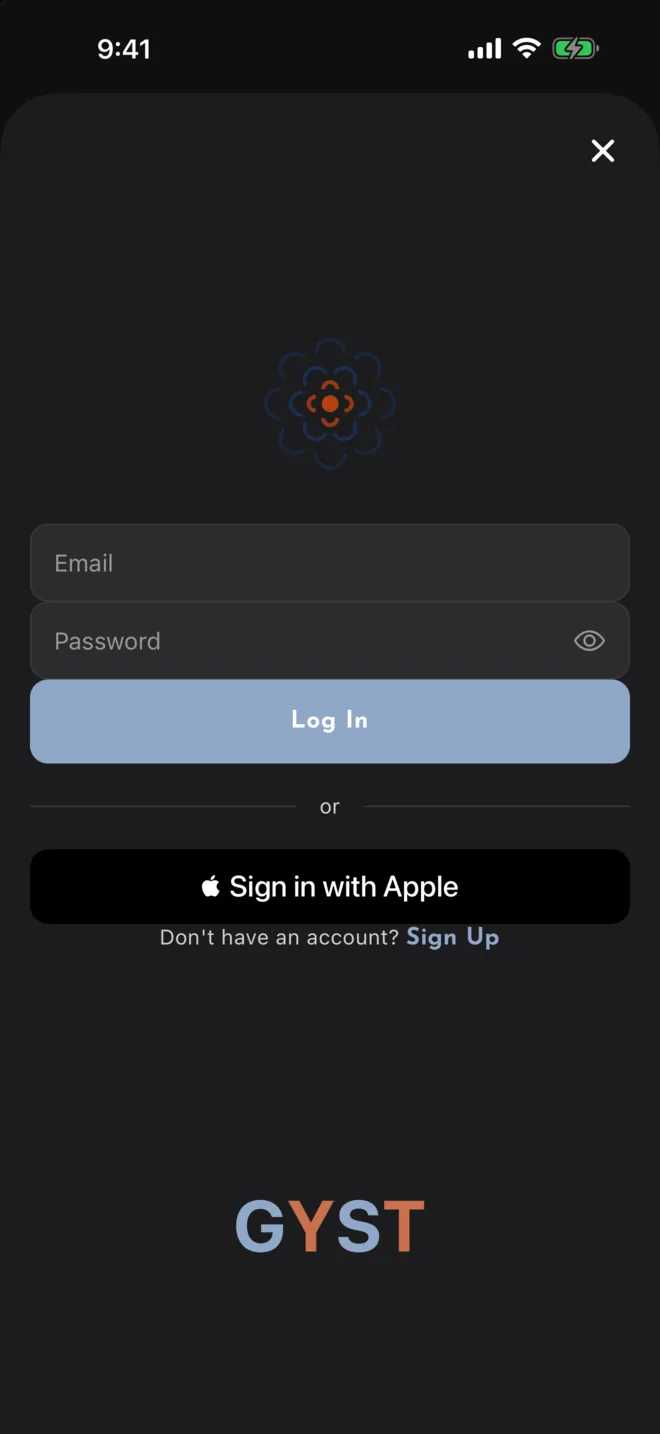
Sign in with Apple, or sign up with an email address. An email password needs at least eight characters, including an upper-case letter, a lower-case letter, a number and a symbol.
You can look around without an account, but saving anything needs one. There is no password reset in the app yet. If you are locked out of an email account, write to joe@jamelna.com.
The five tabs
- Insights: what you wear, the AI Stylist and outfits for the weather.
- Style: your clothes, outfits and capsules.
- GYST: the home screen, with today’s outfit and any questionnaires waiting for you.
- SwapMeet: listings from people near you.
- Settings: your account, preferences and data.
Adding clothes
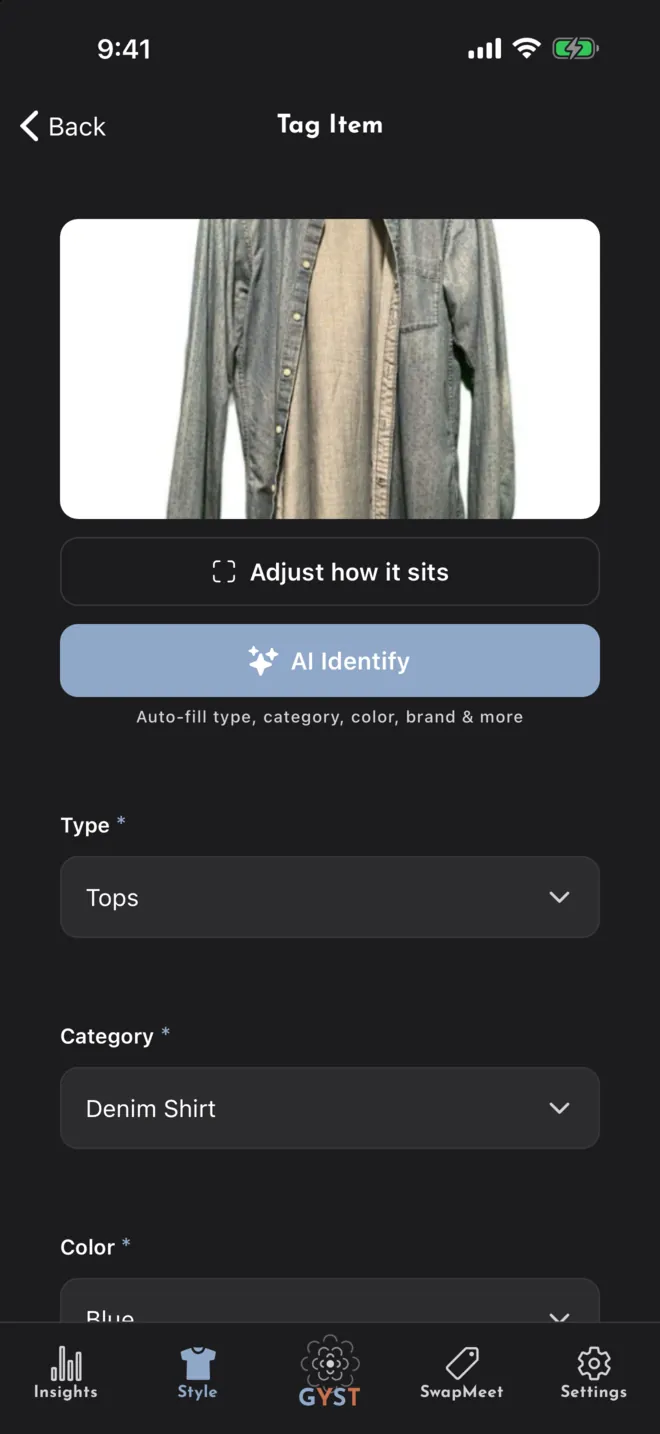
Everything else in GYST is built from what you add here, so start with the pieces you wear most weeks and add the rest over time. There is no bulk import.
- Go to Style, then Clothes, and tap the + button.
- Tap Take Photo or Choose from Library. After each photo you can add another view of the same item, up to five. The first is the main photo.
- Tap Continue to reach the details form.
- Tap AI Identify to have the details filled in, or fill them in yourself. Type, Category and Color are required; pattern, fit, season, brand, size and notes are optional.
- Tap Save Item, then Done or Add Another.
Getting a good photo
How to shoot a great photo on the add screen has the full tips. In short: a background that contrasts with the garment, light from a window, the item laid flat and filling the frame, shot straight on, one piece at a time.
Background Removal is on by default and runs on your phone. Turn it off under Settings, AI. If it cannot pick the garment out, the photo is kept as it was, and you can try again later from the item’s page.
AI Identify
AI Identify sends the photo to Google Gemini and fills in the type, category, colour, pattern, season and, when it can read one, the brand. It also adds a short description, the material and a rough value to the notes. Check what it chose before saving; you can change any of it.
It only runs when you tap it, and only while AI Insights is on in Settings.
Adding an item without AI
Add Item Manually skips straight to the form. Every item still needs a photo, so the form asks for one first; the rest you fill in yourself.
Fitting the photo
Fit photo to frame lets you pinch, drag and twist the photo so the garment sits well when it appears in an outfit. GYST also measures each photo on its own, so this is only needed when the result looks off.
Your wardrobe
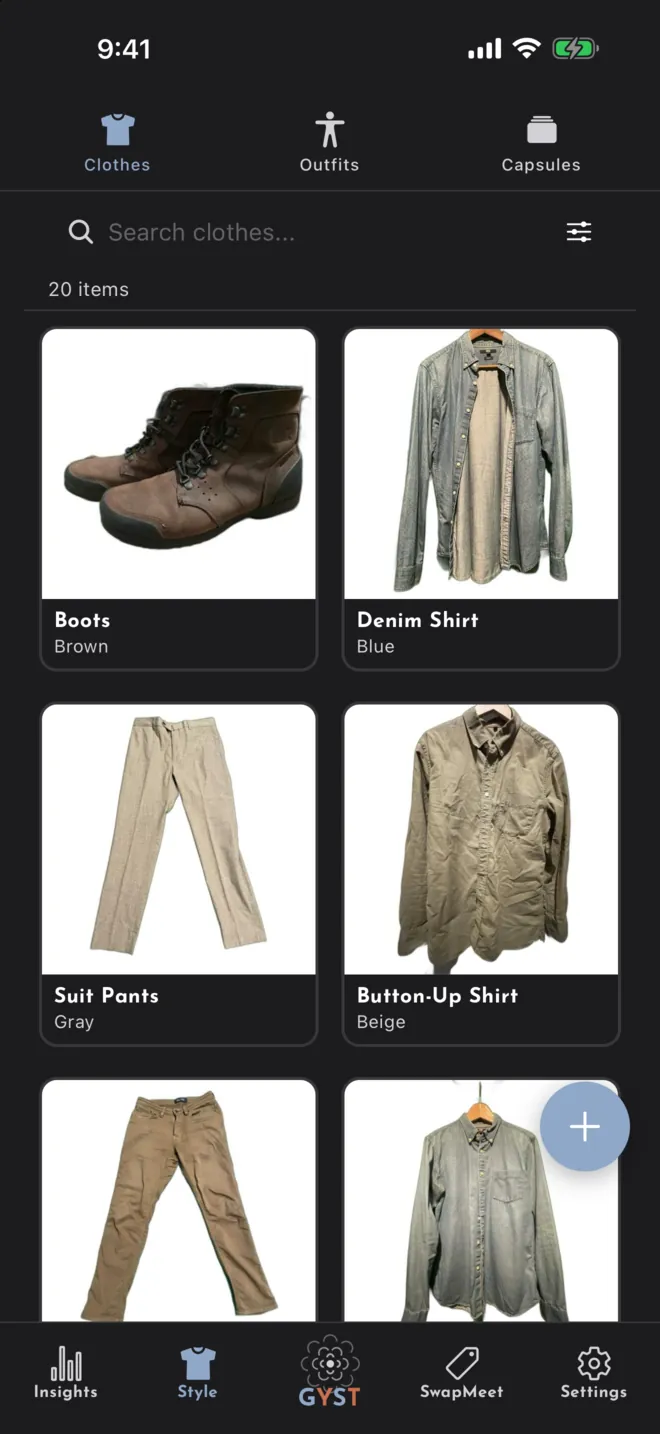
Style, Clothes shows everything you own. Each tile shows how many times the item has been worn, a basket when it needs washing, and Listed when it is on SwapMeet.
Finding things
Search looks through category, brand and colour. Searching a colour finds its shades as well, so “grey” also finds charcoal.
The filter button offers Type, Family (jeans, shirts and so on), Color, Brand and Status (Clean or Needs Wash), and sorts by Most Recent, Most Worn, Least Worn or A-Z. Colours are grouped into families, and something in two colours appears under both.
An item’s page
Tap an item to open it, and swipe to move to the next one. Tap the photo to see it full screen. The buttons on the photo let you:
- Delete the photo you are looking at, when the item has more than one.
- Fit the main photo to its frame.
- Rotate it a quarter turn.
- Clean up the background, with the wand. It removes the background on your phone, the same way it happens when you add something, and leaves the photo alone if it cannot pick out the garment.
- Replace the photo with a new one.
- Add another photo, up to five. The reorder arrows move a photo along; whichever is first is the main photo.
To change the details, tap the pencil on Item Details, make your changes and tap Save Changes. AI Identify Item in the same place reads the photo again.
Wearing and washing
I wore this today adds a wear. So do Wore it on today’s outfit and logging an outfit, covered below.
Each kind of garment has its own number of wears before it needs washing: a T-shirt after two, most things after three, a belt after fifty. When an item reaches it, a Needs washing note appears. Mark as Cleaned clears it. Times worn counts wears since the item was last cleaned, so marking it clean sets that count back to zero.
Removing an item
Delete Item at the bottom of the page removes it, and removes it from any outfits and capsules it was in. Exclude from declutter tips keeps an item out of the list of things you are not wearing without deleting it.
Today’s outfit
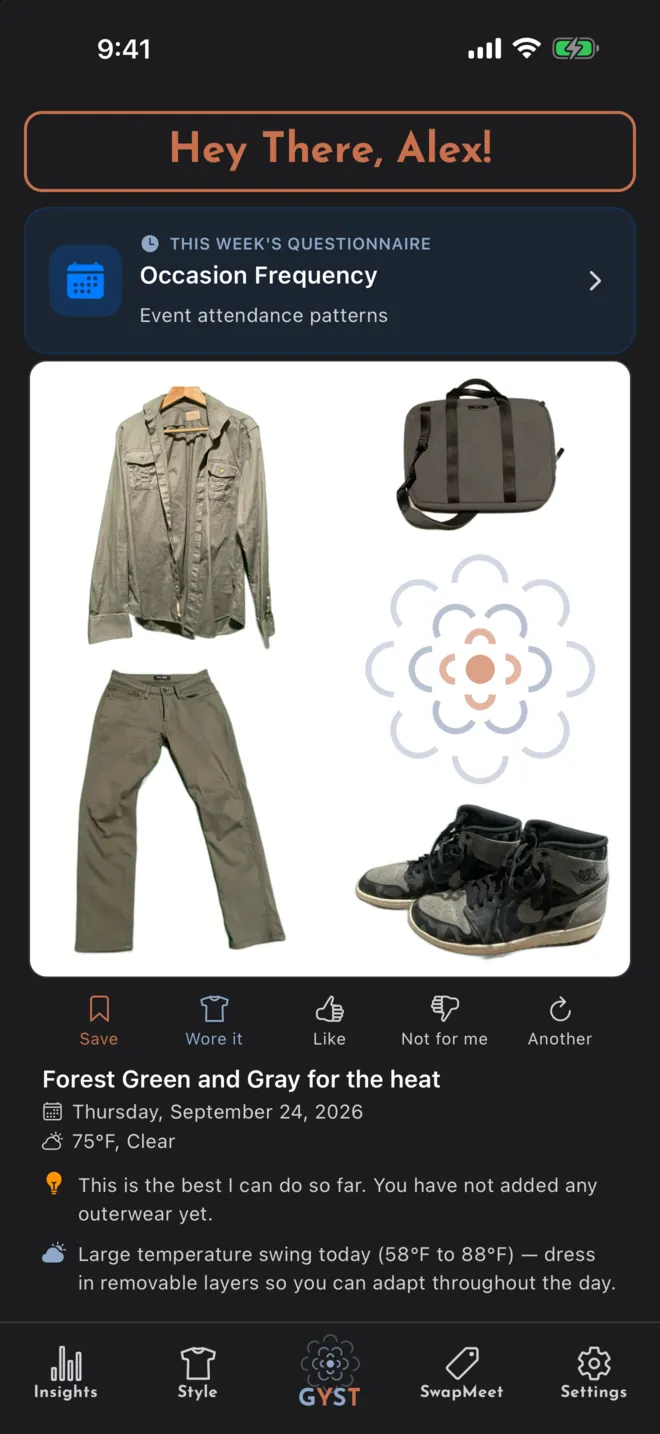
The GYST tab suggests one outfit a day from your own clothes, dressed for the local forecast. It needs at least three items, and your location for the weather.
The buttons under it
- Save keeps it in your outfits. Tap Saved to take it back out.
- Wore it adds a wear to every piece in it. Tap again to undo.
- Like tells GYST to offer more like it.
- Not for me asks, optionally, what was wrong (too warm, too cold, not your style, wrong occasion, or the pieces do not go together), and sets those pieces aside for now.
- Another builds a different outfit.
Wore it counts wears for the pieces; it does not record the outfit itself. To keep a record of the outfit, save it or log it.
Who picks it
By default the outfit is put together on your phone, from your wardrobe, the forecast, what you have worn recently and what you have liked. Nothing is sent to an AI for it.
Turn off Build outfits on this device under Settings, AI to have Google Gemini choose instead. It then also uses your questionnaire answers, your style quiz and anything you have written under My Style in My Words. A rust-coloured edge down the left of the card means an AI chose that outfit.
Logging and saving outfits
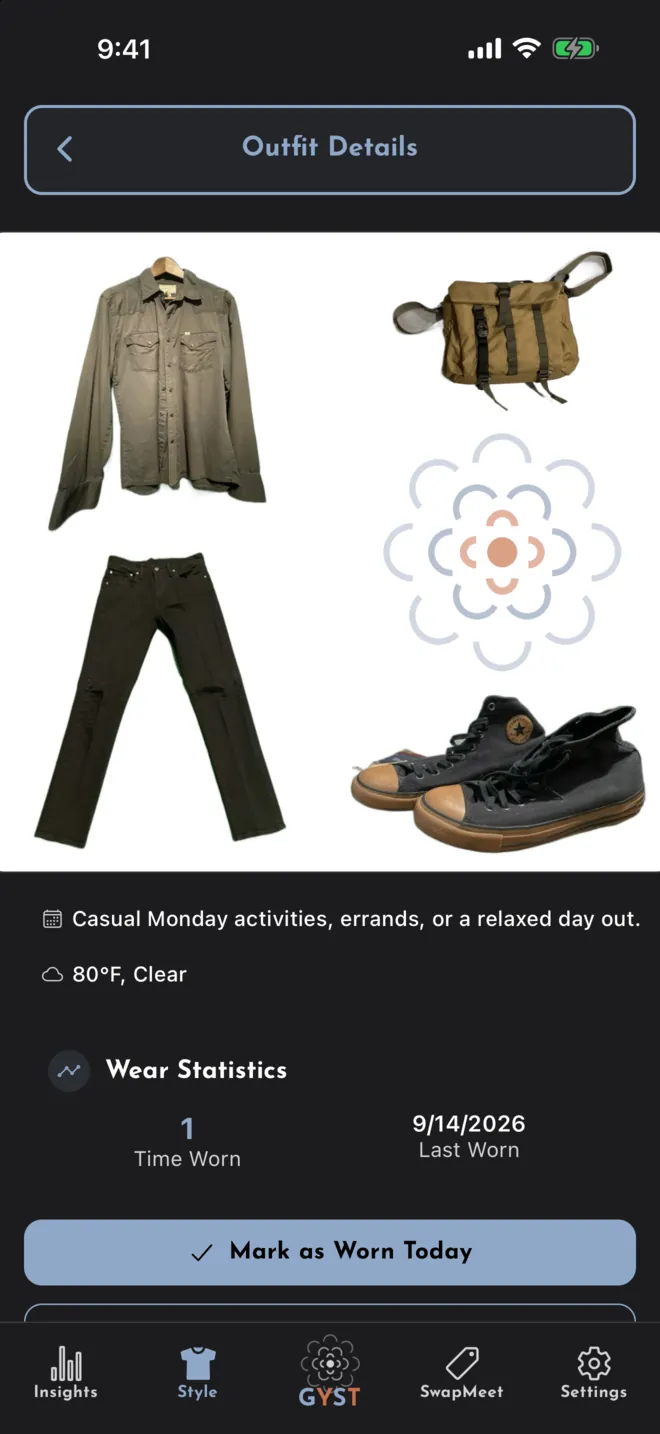
- Go to Style, then Outfits, and tap +.
- Tap the items you wore. You need at least one.
- Optionally add a photo of the outfit. With AI Insights on, GYST looks for your items in it and offers to select them.
- Add a name, the occasion, notes and how the outfit felt, if you like.
- Tap Log Outfit to record that you wore it today, which adds a wear to the outfit and to each piece, or Save without logging a wear to keep it for later.
Open a saved outfit to Mark as Worn Today, Edit Outfit, Share Outfit as an image, or Delete Outfit. The outfit list can be searched, filtered by occasion, weather and season, and sorted by name, date or how often each was worn.
Capsules
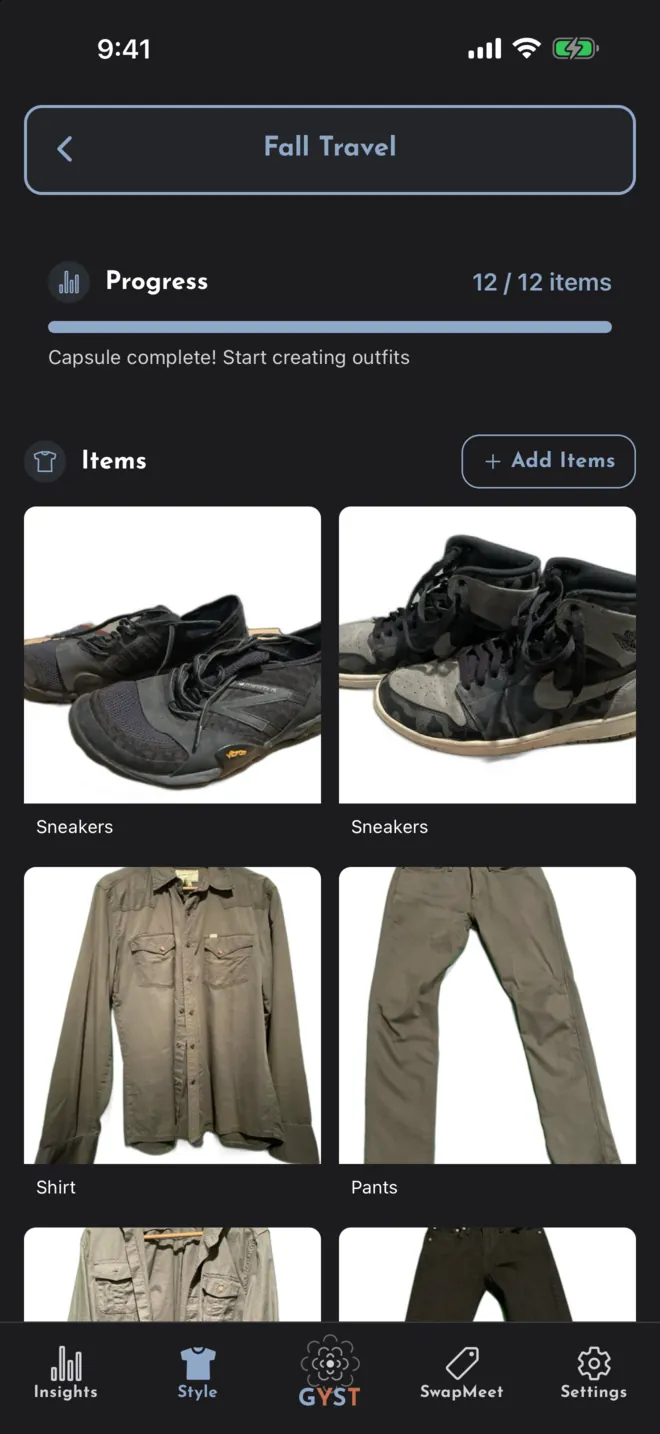
A capsule is a small set of your clothes chosen for a purpose: a trip, work, a season. It lives under Style, Capsules.
- Tap +, give it a name, pick a type and a target size between 8 and 20 items.
- Open it and tap Add Items to choose pieces from your wardrobe.
- Tap Generate Outfits for up to ten combinations of what is in it, and Save any you want to keep. These are put together by simple pairing rules on your phone, not by an AI.
Press and hold an item to take it out of the capsule.
Insights, the Stylist and Weather
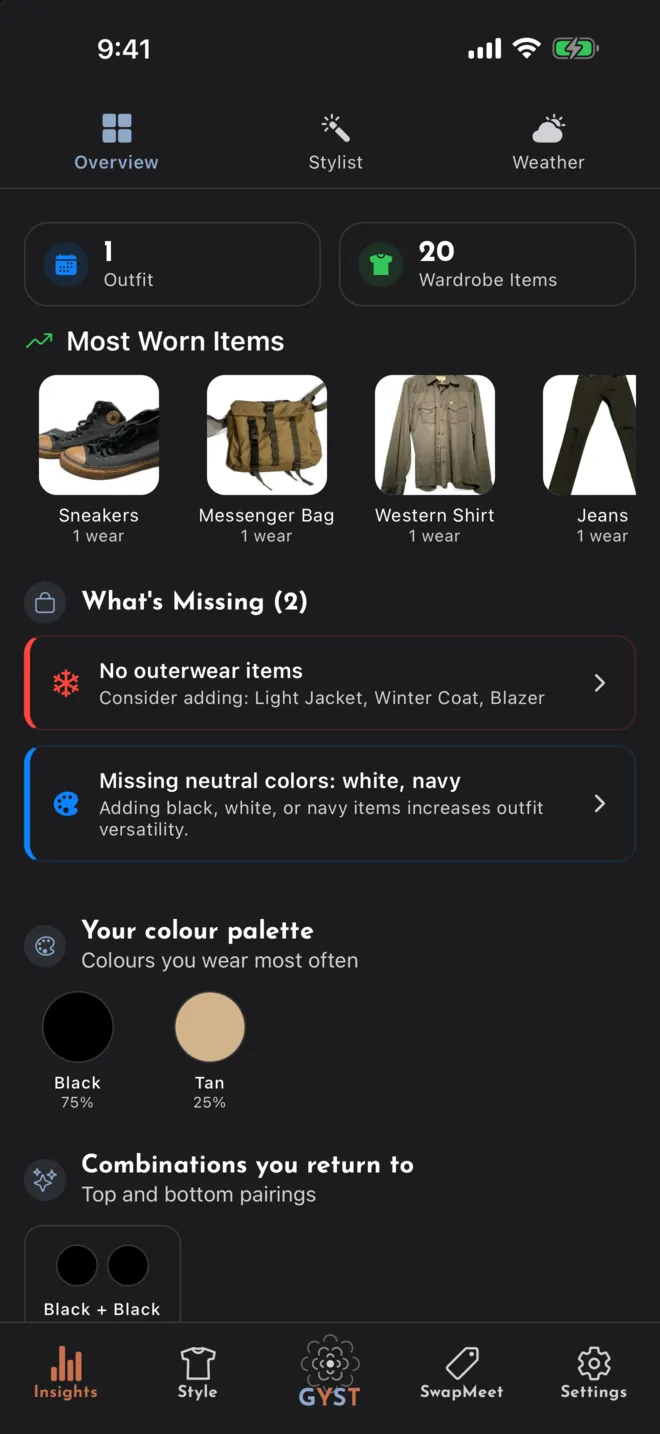
Overview
- Most Worn Items: your five most worn pieces.
- Not Being Worn: things untouched for six months or more. Each has Swap and Sell to list it on SwapMeet, and an × to stop it being suggested.
- What’s Missing: gaps in your wardrobe. Tap one to look for it on SwapMeet.
- Your colour palette and Combinations you return to: the colours and top-and-bottom pairings in your most recent saved outfits.
Stylist
Describe where you are going, such as “business meeting downtown”, and tap Style Me!. The sliders button adds filters for vibe, formality, activity, comfort and effort, or a different weather than today’s. You can save up to ten filter presets.
The answer comes back as styling advice, the pieces from your wardrobe to wear with a reason for each, and anything it thinks you are missing. The Stylist uses Google Gemini and needs AI Insights on.
Weather
The forecast where you are, a guide to dressing for it, outfits picked for it by Google Gemini, your saved outfits that suit it, and items right for the season. The AI picks need AI Insights on; the rest of the screen works without it. Refresh asks for new picks.
SwapMeet
SwapMeet is a listings board for clothes from people near you. GYST handles no money: there is no checkout, no fee, no shipping and no buyer protection. You agree the price or the swap with the other person and hand things over in person. You need to be 16 or older.
Browsing
Anyone can browse. With your location allowed, listings show how far away they are, and you can set how far to look, from 5 to 100 miles. Filters cover the type of item, condition, sale or trade, and price.
Listing something
- Turn on Public Profile under Settings, Profile. Listings show your display name.
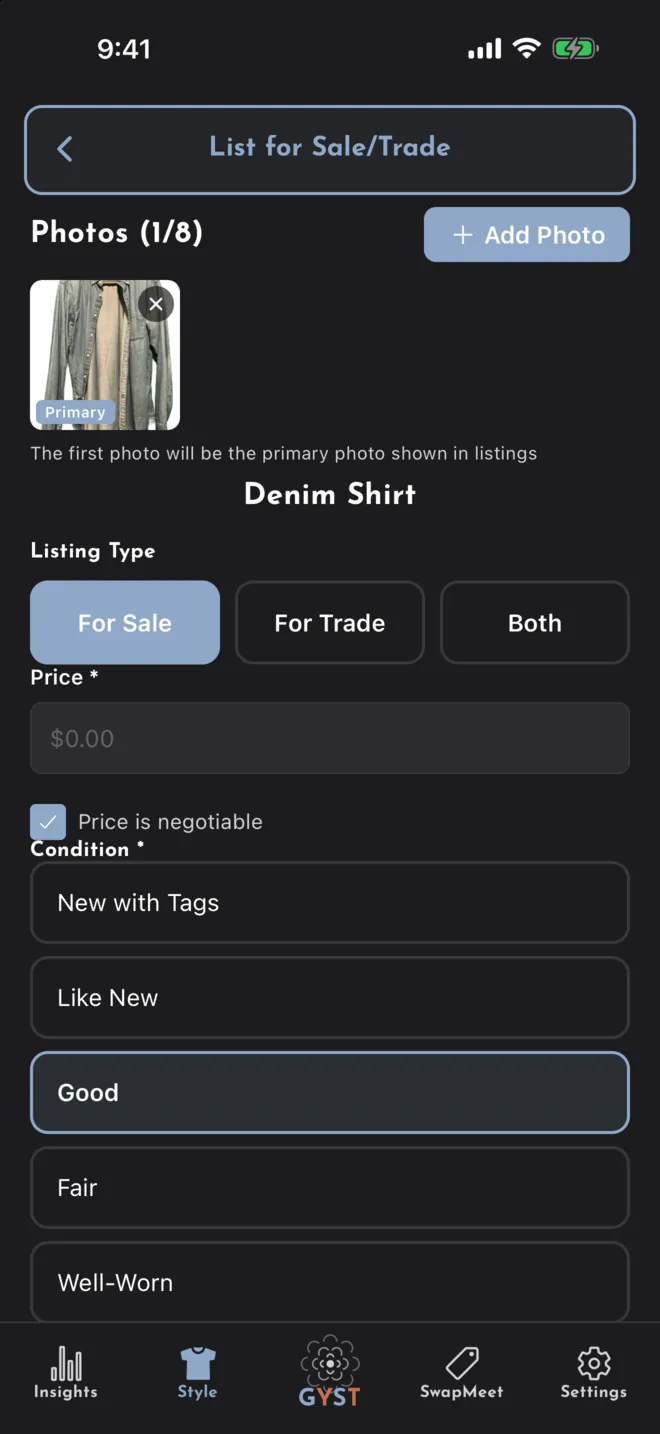
- Open the item in your wardrobe and tap List for Sale/Trade, or use Swap or Sell under Not Being Worn.
- Add up to eight photos, choose For Sale, For Trade or Both, set a price or say what you would trade for, pick the condition, and tap Create Listing.
If you allow your location, the listing stores it rounded to roughly a kilometre, so other people can see how far away it is. Listings cannot be edited; to change one, remove it from its page with Remove Listing and list the item again.
Messaging and meeting
Contact Seller opens a conversation about that listing. Messages are checked as you send them: phone numbers, email addresses and the names of payment apps are blocked, as is abusive language. The menu in a conversation has Rate User, Report User and Block User. A blocked person cannot message you again, about that listing or any other; the conversation showsUnblock if you change your mind. A seller’s rating on a listing is the average of the ratings people have left them, one per person.
Once you have exchanged a few messages, Suggest Safe Meeting Location offers public places near you from OpenStreetMap, such as libraries, police stations, cafés and banks. The other person approves the place, and either of you can set a date and time. After you have met, you both confirm the exchange, and a sold item leaves your wardrobe list.
Staying safe
Meet somewhere public and busy, bring someone if you can, look the item over before anything changes hands, and walk away if it is not as described. GYST cannot refund you or settle a dispute, because the money never passes through it.
Settings and notifications
Appearance
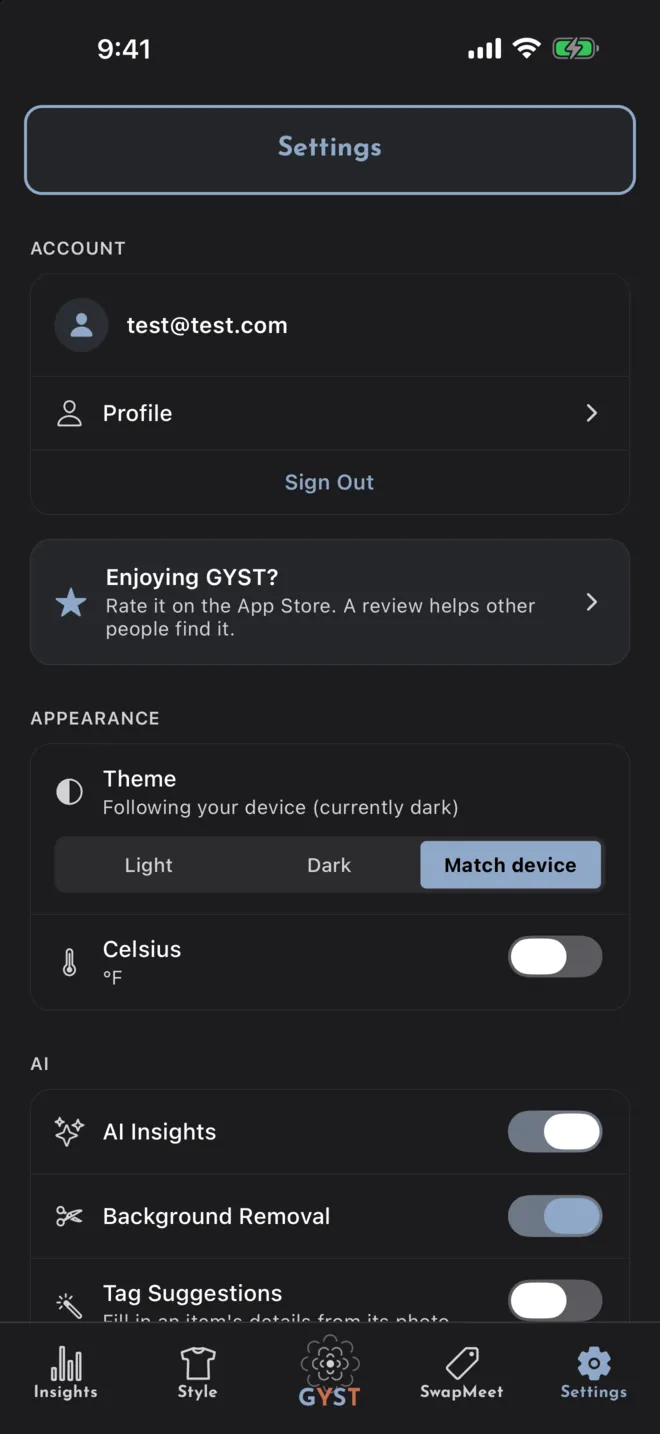
Theme is Light, Dark or Match device. Celsius switches temperatures on the home screen from °F.
AI
- AI Insights is the main switch. With it off, nothing is sent to an AI: AI Identify and the Stylist stop, the Weather tab skips its AI picks, and today’s outfit is built on your phone.
- Background Removal for new photos, on your phone.
- Tag Suggestions adds a Get AI Suggestions button to the details form.
- Build outfits on this device, described under Today’s outfit.
- Morning reminder (7:30am): a daily nudge to look at today’s outfit.
Notifications
GYST sometimes sends an evening reminder about something you have started, such as a capsule that is nearly full or logging what you wore. There is at most one a week, and only if you have allowed notifications. Under Notifications, Reminders turns these off, and Questionnaires turns off the one about unanswered style questions.
Your profile and style
Profile holds your display name, username, bio, photo and the Public Profile switch for SwapMeet. It is also where you take the Style Quiz and write My Style in My Words, which tell the AI how you like to dress. The short questionnaires on the GYST tab do the same.
What leaves your phone
Your wardrobe is stored in your GYST account so it is there on any device you sign in on. Beyond that:
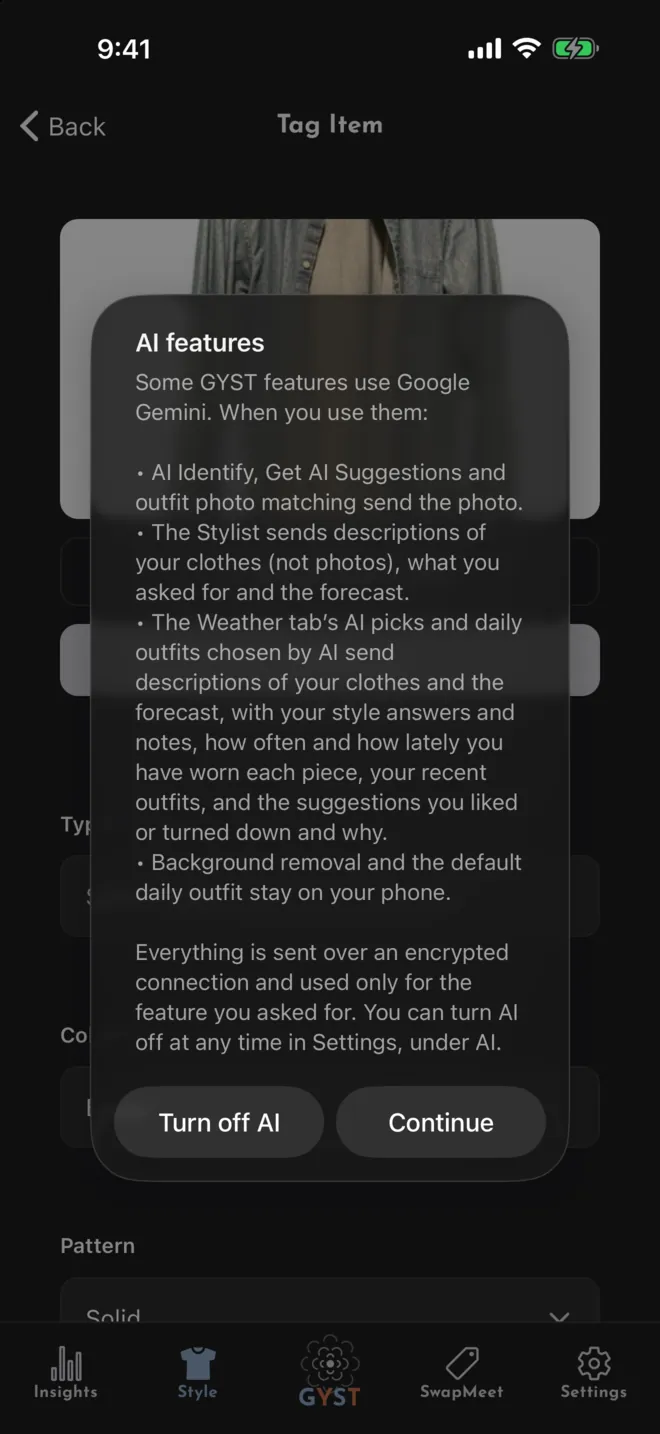
- AI Identify, AI Identify Item, Get AI Suggestions and outfit photo matching send the photo to Google Gemini.
- The Stylist sends descriptions of your clothes (type, category, colour, brand and similar, not photos), what you asked for and the forecast.
- The Weather tab’s AI picks, and today’s outfit when an AI chooses it, send descriptions of your clothes and the forecast, with your questionnaire answers and style notes, how often and how lately you have worn each piece, your recent outfits, and the suggestions you liked or turned down and why.
- Your location goes to GYST’s weather service to look up the forecast. SwapMeet uses it for distances, stores it roughly with a listing, and sends it to OpenStreetMap when suggesting meeting places.
- Background removal and the default outfit builder run on your phone and send nothing.
GYST shows no advertising and does not sell your data. Turning off AI Insights stops everything in the first two points.
Your account and data
Exporting your data
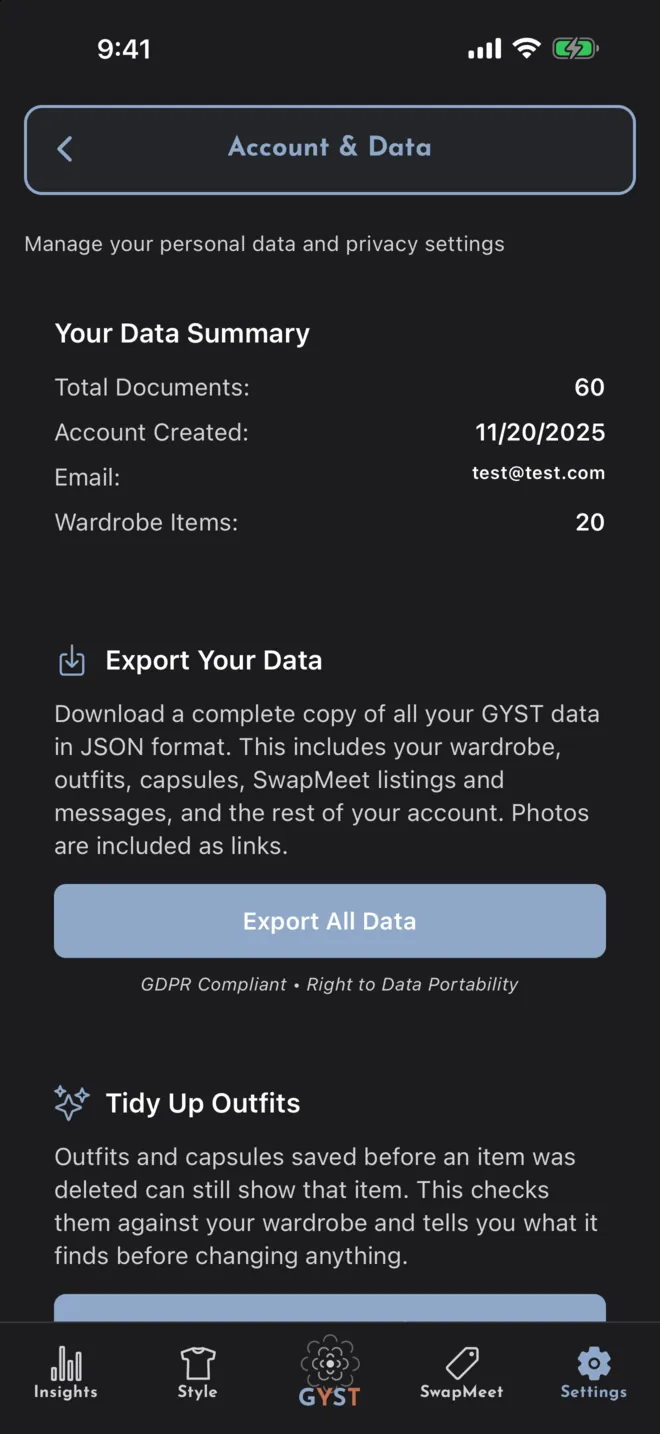
Settings, Your Data (GDPR), then Export All Data. You get a file with your wardrobe, outfits, capsules, listings, messages and the rest of your account, to save or send where you like. Photos are included as links.
Deleting your account
Settings, Danger Zone, Delete Account, then Delete My Account. You confirm with Sign in with Apple or your password. It deletes your account, your data and your photos. Clear Wardrobe in the same place deletes every item but keeps the account.
Getting in touch
Send Feedback in Settings reaches the developer directly, with your device and app version attached. Or email joe@jamelna.com. The FAQ answers the common questions.
Start with what you already own
Photograph the first five things you actually wear and see what GYST makes of them.